This document will explain the 3 types of messaging services BookingCenter supports.
- 1-way Messaging. This is easy to setup and can be ready in a day to automate messaging. A great way to start!
- 2-way Bi-directional Messaging. 2-way bi-directional requires registering a phone number and <optionally> enrolling in Meta's WhatsApp program.
- AI Agent messaging via web, SMS, and WhatsApp. Your AI Agent will be setup for you (your phone number, WhatsApp registration, Concierge 'brain', and rate & availability allocation) - and learns the more it's used.
SMS Module
1-way SMS Messaging in MyPMS
You must subscribe to the SMS Module and have your site enabled for SMS Messaging by BookingCenter Staff. Please contact us at or submit a support ticket to to get started. See SMS Module | Pricing
SMS Letters can be customized with simple text and merge fields.to display specific guest and booking information and sent manually from each booking and/or sent automatically to guests before or after arrival by using Auto Letters.
BookingCenter staff helps create your SMS Letters and then either schedules the delivery in Auto Letters; as part of Self Check-in / out; or you can send SMS manually from the booking. See the steps below.
on
SMS Module Setup : Follow these steps to start sending SMS messages.
Step 1: The first step is to create an SMS Letter, see Add or Edit SMS Letters.
Step 2: Then you can choose to manually send the SMS message to the Guest or set up automatic delivery using Auto Letters.
To Manually Send an SMS Message to a Guest from the Booking:
- Open the Booking and go to the Letters Tab.
- Go to the SMS Message drop-down and select the SMS Message created in Letters.
- Click Send SMS Message.
- The SMS Message will be sent and recorded in the Log of the Booking.
*note: BookingCenter always attempts to use the Mobile number field first. If blank, we then try the Main phone number. If this is also blank, we then try the Business number to send the SMS. Because there are no fees for attempted SMS, this allows us to cascade through the numbers till we find the correct number to SMS.
Use Auto Letters: Schedule Delivery of an SMS Message: Note: The Auto Letter function for SMS is available for Self Check-in, eSign and Booking Made Today. See Auto Letters SMS
- Go to SETUP | PARAMETERS | AUTO LETTERS
- Click Add
- In the "Event" drop down menu, select the SMS Event.
- The Event Details screen will open.
- Letter: Select the Default SMS Letter that you created in Letters.
- Days: Choose the number of days on or before check-in that you want to automatically send the SMS message. This should be timed with the email.
- Timing: Select Before (I.e. 2 days before Check-in)
- Notes: This field is for your notes. It will not be displayed to Guests.
What if an SMS doesn't get through to the recipient? If the Mobile number is incorrect, or the Country associated with the Guest is wrong, BookingCenter will email your property with the specific error of the SMS, looking something like this:
Subject: SMS message about booking MYPMSDO1351524 failedDate: April 9, 2019 at 4:17:02 PM PDTThe message failed to send to because...
[HTTP 400] Unable to create record: The 'To' number +1242 is not a valid phone number.
This usually occurs because the mobile number or country code are wrong, so we recommend that you do not attempt to send again without correcting.
What if a Guest replies to your SMS,, which is a shared 'short code' used among many customers? Because the message was sent from a Booking, we track the 'thread' and reply as follows:
The guest receives a message if they reply to the SMS "This is an Automated Service, we will do our best to forward your message to the property you are staying at", but we recommend you contact them directly" reply to your email address, looking something like this:
The property receives an email that captures the text the guest messaged that lookalike this:
From: xxxxx@xxxxx.bookingcenter.com
The guest replied to your 1-way SMS as follows: I will be arriving late, what time does your desk close?
Subject: SMS message about booking MYPMSDO1351524
Date: April 9, 2024 at 5:17:12 PM PDT
To: info@bookingcenter.com
Note the guest received the following response: This is an Automated Service, we will do our best to forward your message to the property you are staying at", but we recommend you contact them directly"
2-way, Bi-directional Messaging Setup
BookingCenter’s bi-directional messaging allows your property to communicate with your guests via SMS and WhatsApp. You can respond to guest questions and also create standard responses to quickly and efficiently answer typical requests. There are two areas where you can respond via SMS to guest requests, which include MyGuest and MyPMS.
- MyGuest
Anytime a guest sends a SMS to the property, a new Request in MyGuest will be created. A summary of all guest requests titled ‘Interface – SMS-WhatsApp’ are specific to bi-directional SMS communication.
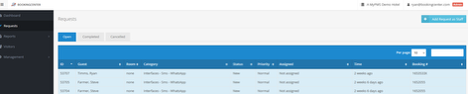
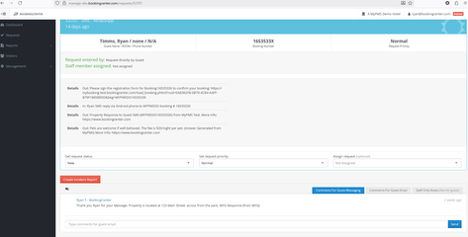
When you click on the specific guest request, you can type your responses un the ‘Comments for Guest Messaging’ section.
We also summarize and log chronologically the communication between yourself (or your staff) and the guest.
We highlight ‘In’ messages from the guest, while ‘Out’ messages are outgoing from the property. We also log the specific messages in each request.
- MyPMS
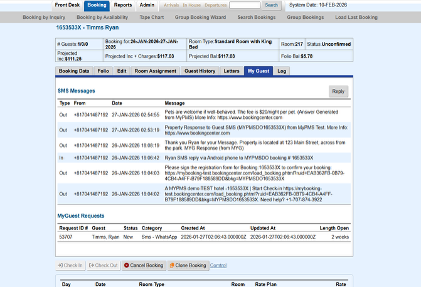
Also, anytime a guest sends a message that is a reply to an outbound SMS/hHatsApp, or to the property that is associated to a booking, the information is summarized in MyPMS. Details can be found in the booking under the ‘MyGuest’ tab.
Within the ‘MyGuest’ tab, you are able to:
- View all incoming guest SMS messages,
- View all outgoing property SMS responses
- View the MyGuest requests
- Reply to guest SMS
A summary reply can be viewed at:
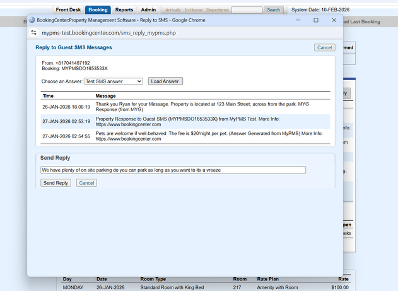
When you reply to a guest SMS, you can type a specific ‘free’ text content or choose a specific answer/response that you have pre-loaded.
The pre-loaded responses are often standard questions that you answer regularly, such as parking, driving directions, pet policy, etc.
Once you have chosen the response, clicking the ‘Send Reply’ will immediately send this SMS to the guest.
AI Agent Messaging Setup
The AI Agent is initially setup as your 'brain', compiled from the data BookingCenter contains about your property - contact details, rooms, amenities, activities, attractions, images, rates, etc . We populate as much as we have in BookingCenter and then we perform an audit with you to get even more details about your property. The 'brain'' is artificial intelligence that learns about your operations and market the more Guests ask of it. There are four main areas that BookingCenter setups for you:
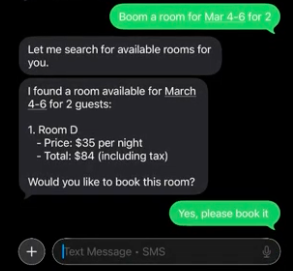
- Your SMS and WhatsApp numbers are setup for your business as new 'demand-generating' ways for Guests to find your property, ask relevant questions, and book without ever leaving their chat interface. Capture new bookings that you would otherwise never be able to access, without Guests ever going to your website. And it happens 24 x 7 without staff engagement. And if a question or concern (such as an emergency) occurs, the Agent triggers a message immediately to the GM/Owner/Front Desk supervisor with an embedded link to the chat history so a human can reply in the message and take over from the AI Agent.

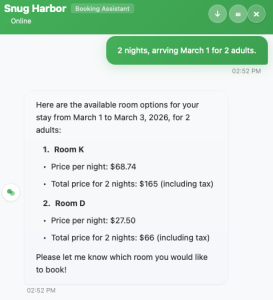
- The 'AI Agent' we publish on your website or concierge 'intranet' allows guests to chat with the AI agent and answer questions, book rooms, ask for room service, etc. It is an AI Agent operating via a chat interface on your website providing 24 x 7 engagement.
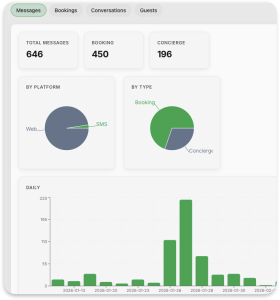
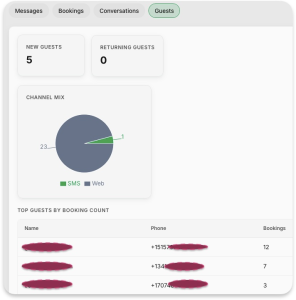
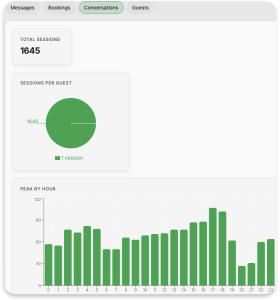
- The Dashboard allows you to view all chat histories, analyze them, and watch for patterns in order to better and faster train the 'brain'.
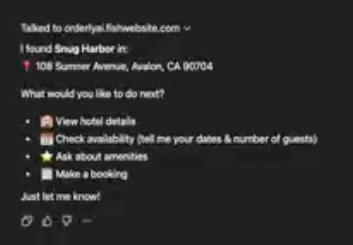
- MCP (Model Context Protocol) — The "Universal Adapter". Similar to how Google Search offered early competitive advantage vis a vis your competitors for 'virtual' position on the internet, publishing your property into the MCP protocol enables AI Agents (f4om ChatGPT, Gemini, OpenAI, etc) to search your property. To place you further ahead in this growing market, our partner, Orderly.ai can build you a ChatGPT plugin enabled for your guests to provide a dedicated path to your property via AI inquiries and push you to the top of hotel searches.
- Customizing to your property, we use the shared document BookingCenter provides when purchasing the AI Agent for your property. Our shared document confirms the onboarding document is customized to your preferences. Among the settings are:
- Check-in and Check-out messages sent via SMS and/or WhatsApp, custom to each property.
- Behavior of the chat in regards to allowing Self Checkin and/or Self Checkout via Chat.
- How to reach a manager/front desk when a Guest requires it, for both emergencies and when the AI Agent can't reply sufficiently for a guest's needs. This is called 'live escalation'.
- Settings for key events such as Booking Created, Payment Success/Fail, Booking Made/Cancelled, Service Request, and OTP requirements for both Staff and Guest, so that some notifications are sent to Staff, while others to Guests.
- Offering multi-language support (23 languages supported as of June 2026) and automatic translation for Agents and/or Guests.
- Hotel wi-fi password and SSID for automatic delivery to Guests at checkin.
- WHatsApp integration so that messages can be routed through WhatsApp are routed there from a Meta Business account.
Overview
Content Tools