The Maintenance App is integrated with MyPMS (and often with the Housekeeping App) and can be used on any mobile or desktop device. Review the following features and then go to the step-by-step instructions below to learn how to use The Maintenance App with MyPMS.
*note: If your User has an older device, or no phone that can run iOS or Android apps, the same features are available via the website, with the exception that notifications won't work for a user who has no iOS or Android app installed.
Mobile Housekeeping App
The Maintenance App is needs to be activated by BookingCenter to function. To activate your user in the mobile app, the user must first log into manage.bookingcenter.com once to register their user to the app. Please review the following features and then go to the step-by-step instructions below to learn how to use TheMaintenance App with MyPMS.
- Users: TheMaintenance User(s) do not have to be employees of your property. Sometimes they are outside contractors working both on- and off-site. That is one of the benefits of the Maintenance App - regardless of your 'vendor', a maintenance request can be assigned, and tracked, for the specific User assigned. If the Request goes 'stale' the system has an escalation process to 'escalate' the Request to a manger for intervention.
- Default Maintenance User: if you want Maintenance requests to automatically be assigned to a default User when issued from the Tape Chart or a specific Booking, then set that User here and turn on that feature in the Settings area of MyPMS where a list of active Users can be selected. Make sure that the user you choose here has access to the MyGuest and Maintenance functions in the User area.
- Escalating Requests: If a User is taking too long, or your Users need to re-allocate their cleaning schedule, no worries! Anyone can login to the app (via mobile, desktop, or the PMS) and re-assign a Room to clean and/or supervise to someone else.
- Manager Dashboard and Request Tracking: Because all events are logged, the Maintenance App lets you know the productivity of each maintenance worker, with a Dashboard to watch productivity over time.
To learn how use the Maintenance App, follow the steps below.
Assign and Send a Request
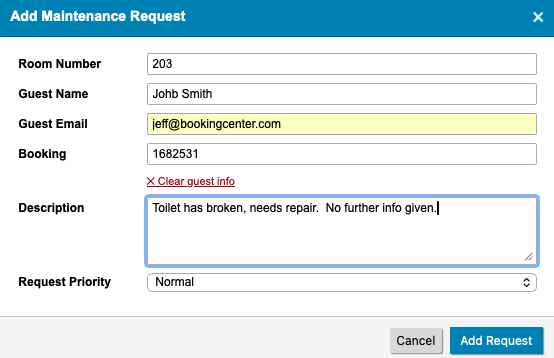
In MyPMS the Tape Chart and each booking, a User can add a maintenance Request and track them from the PMS.

When issued a form appears for yor staff:
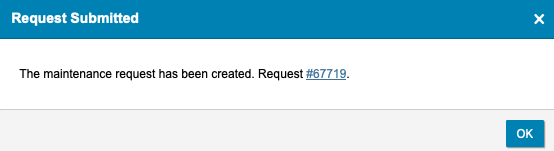
The result is a new Request and it has been sent as a 'notification' to whoever was set as the 'default' maintenance user for your property. Clicking the Request ID will open the request.
Armed with the BookingCenter mobile app (or they can use a web browser), the User receives notification about their daily needs (no more Housekeeping sheets to print out!) and the system notates the time the request was sent.
All Rooms that are in DIRTY status will be unchecked and have a "Request" Button and a User List to the right of the Room. All Rooms in CLEAN Status will have a checkmark next to the Room and the Request Button and User List will not display.
To Assign a Task to a Housekeeper and create and send a Request for one Room or a Group of Rooms, follow these steps.
- Select one Room or Group of Rooms
- Select the User from the User List and click "Request"
- The Room will be assigned to the User and a Request will automatically be created in MyGuest. The Housekeeper (User) will be sent a notification on their mobile phone and see the Request in the MyGuest App
When the Housekeeper views the Request, the 'detail' message shows the correct status of the cleaning need:
- Departing Clean - This message means the room contains a guest who has, or will be, departing 'today'. Bookings that are either still 'in-house' and expected to depart, or those 'checked out' (i.e. status: complete), are considered Departing Clean.
- Vacant Clean - This message means the room has been vacant for at least one day.
- Stay Over Clean - this message means the room contains a Guest staying over, so a light clean is usually sufficient.
If the property uses Housekeeping Groups the assignment process is similar, but it can assign all the rooms in the group with one selection and one click.
- Select the User from the User List in the group header menu
- Click on the 'Request' button to assign a new cleaning request to each room within the group. All rooms will be assigned to the same housekeeper
- Booking Status - Bookings that are: In-house but departing today (C/O), already checked out (OUT), or vacant and still dirty (VD) would be assigned a new request to the housekeeper selected in the group header when the groups ‘Request’ button is clicked
Self Check-in Guest Requests (optional)
If a Guest is attempting to self check-in to their room via Mobile or a Kiosk, and the Room assigned to them is not clean, but the Arrival Time on the booking has come to pass, the Housekeeping staff will receive a message:
Attention A MyPMS Demo Hotel staff. A new request has just been received
- Request: 1805
- Name: The Housekeeping App
- Room: 404
- Request Name: My Hotel Housekeeping Request
A Guest Request is awaiting attention, click here to manage it. Please attend to it as soon as possible.
They can then focus on this room or contact the Guest to set expectation.
Automatic Housekeeping Assignment at Check-out
Some properties wish to automatically assign a Full Clean Housekeeping request to a User immediately upon Check-out. The benefit is to dynamically prioritize Housekeeping tasks as they arise, without waiting for a list or a manual assignment. This feature assigns to a default User a Full Clean request immediately upon Check-out. This works whether a Guest is manually checked out (via a PMS User) or via the Guest through Self Check-out. This can be especially helpful for properties who use an 'off site' Housekeeping service and need to immediately notify the service upon checkout.
Select one Room | Or, select a Group of Rooms | Select User and Submit Request |
|---|---|---|
| Request Assigned to User | Request created in MyGuest and Notification sent to User | ||
|---|---|---|---|
Status: Assigned (MyPMS) = New (MyGuest) | Request Received | Dashboard |
|
Tracking Requests and Ready for Inspection
Then, when the User has cleaned the room, they can set it for 'Inspection', which automatically assigns the Request to their Housekeeping Supervisor. This alerts the PMS that the Room is now under 'Inspect' status. Or, alternatively, set the Request to 'complete' which both closes the request and also sets the Room 'clean' in the PMS. If using 'supervisors' for Housekeeping, the Supervisor automatically receives notification about each Room(s) are ready for their 'inspection', and the Supervisor 'closes' the Request after inspection, triggering the PMS to set that Room 'clean' and ready for check-in. Alternatively, the Supervisor could make comments about the cleaning and assign the Request to a User s/he chooses and that Housekeeper would be notified and the PMS updated that the Room is once agin 'Assigned' and not ready for rent.
To set a Request to Inspect, follow these steps.
- The Housekeeper (User) changes the Request status to "processing" in the Mobile App.
- The status of the Room is changed to "Inspect" in MyPMS
- The supervisor or whomever is designated will receive a notification that the Room is ready to Inspect.
Request is set to "processing" in MyGuest by Housekeeper
| Set to "processing" | Status changes to "Inspect" in MyPMS |
|---|---|
Status: Processing (MyGuest) = Inspect (MyPMS) |
Request "Complete" and Room CLEAN
Alternatively, set the Request to 'complete' which both closes the request and also sets the Room 'clean' in the PMS. If using 'supervisors' for Housekeeping, the Supervisor automatically receives notification that the Room is 'clean' and ready for check-in. Alternatively, the Supervisor could make comments about the cleaning and assign the Request to a User s/he chooses and that Housekeeper would be notified and the PMS updated that the Room is once again 'Assigned' and not ready for rent.
To set a Request to Complete, follow these steps.
- The Housekeeper (User) changes the Request status to "Complete" in the Mobile App.
- The status of the Room is changed to CLEAN in MyPMS
- The supervisor or whomever is designated will receive a notification that the Request has been closed.
Request is set to "Complete" in MyGuest by Housekeeper
| Set to Complete | Room is marked Clean |
|---|---|
Status: Complete (MyGuest) = CLEAN (MyPMS) |
MyGuest Housekeeper Dashboard and Request Views
- The Housekeeper Dashboard is displayed to all Users with MyGuest User Role=Housekeeping.
- To receive notifications on the Mobile App, the User must have "Housekeeping" set to ON in the App. To do this, open the App and then click on the "Gear" icon (iPhone) or the "bell" icon (Android), in the top left corner. There will be a list of notification categories. Go to Interfaces | Housekeeping and set to ON.
- The Dashboard displays the number of Pending Requests, Open and Closed Requests for the Housekeeper (User).
MyGuest Manager Dashboard and Request Views
- The Manager Dashboard is displayed to all Users with MyGuest User Role=Manager.
- To receive Housekeeping notifications on the Mobile App, the User must have "Housekeeping" set to ON in their App. To do this, open the App and then click on the "Gear" icon (iPhone) or the "bell" icon (Android), in the top left corner. There will be a list of notification categories. Go to Interfaces | Housekeeping and set to ON.
- The Dashboard displays the number of Pending Requests, Open and Closed Requests.
Overview
Content Tools
