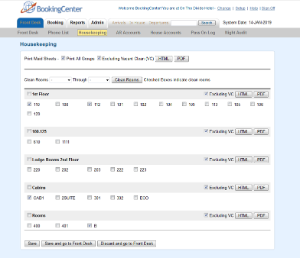
The Admin - Housekeeping function makes it easy to organize Rooms into Groups and customize the Housekeeping area on the Front Desk. Create Groups by building, floor, housekeeper name or any other customized name that works for your property to easily print Maid Sheets for each Housekeeper and will customize the display in FRONT DESK | HOUSEKEEPING with Rooms sorted into Groups. This static method assigns housekeepers to groups of rooms where the groups <usually> don’t change each day. For example, when rooms are organized into ‘Buildings’ or ‘Floors’. This static grouping of rooms for housekeeping purposes makes each day’s assignments to room cleans quickly assigned to a User for that ‘Building’ or ‘Floor’, as the group has been created already. Once the Group is defined, you assign all ‘rooms’ to that User via a single click by assigning the Housekeeping tasks in that group to that single User. The assignment of rooms to groups is done via the Housekeeping Admin area.
When housekeeping groups are used with the Mobile Housekeeping App, the static method creates housekeeping request(s) for each room within a Group with one click. Additionally, when using the the Mobile Housekeeping App, there is a dynamic method we call 'Bulk Create Housekeeping Requests' of choosing a group of room cleans and assigning them to a User. This is ideal when assignment will vary and someone selects a group of room cleans and assigns them quickly to a User. Each assignment then gets made to that User of that dynamic group.
The following details how the Admin - Housekeeping function organizes Rooms into static Groups.
Admin Tab
To Create A New Group
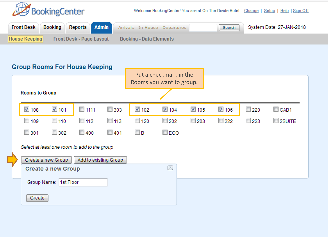
- Go to ADMIN | HOUSEKEEPING GROUPS
- Then, create a new Group and enter a name.
- To start a group select a unit or a series of units that you want to be in a group by putting a check mark next to the unit.
- Then you can create the new housekeeping group. This can be used to sort rooms by floor, housekeeper or building. The way you group is up to you.
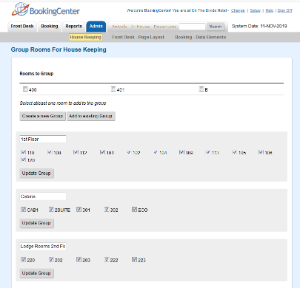
- Once the group is made you can name it and re-name it at any time. You can also drag in new units into any group or move them from one group to the other. Once your groups are set you can print out a specific maid sheet for each group on the front desk housekeeping page
| Select Units | Grouped Units | Grouped Units in Front Desk Housekeeping |
|---|---|---|
|
|
|
To Add to an existing Group or Remove a unit
Once the group is made you can name it and re-name it at any time. You can also add in new units into any group or move them from one group to the other. Once your groups are set you can print out a specific maid sheet for each group on the front desk housekeeping page
- Go to ADMIN | HOUSEKEEPING GROUPS
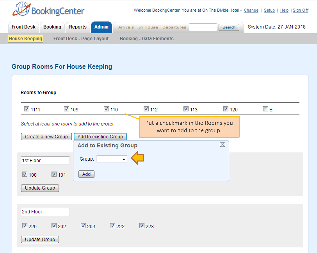
- Then, select the units you want to add to the group by putting a check mark next to the unit.
- Then, click "Add to Existing Group", select the Group and click Add.
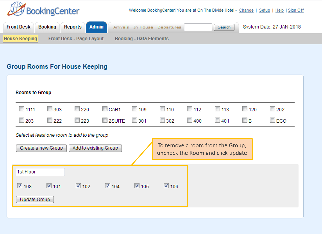
- To remove a unit from a Group.
- Uncheck the units you want to remove.
- Then, click Update Group
| Add Unit to Group | Remove Rooms from a Group |
|---|---|
|
|
Overview
Content Tools