A Child Rate is a rate plan that is setup under a Parent Rate Plan and "linked" to the Rate of the Parent Rate Plans. Any Child Rate can be allocated to your front desk or website in Agent Allocations. By creating a Child Rate with a positive  or negative
  percentage (%) linked to a Parent Rate, you can easily manage rate tiers automatically.
Child Rates are typically used to give automatic discounts for special rates like AAA or to increase rates to individual channels like OTA or Agents.
Child Rates are given a percentage increase or decrease which is automatically calculated from the Parent Rate Plan. The Child Rate will always calculate the 10% discount from the Rack Rate set for that date,
For Example, a rack rate for the QUEEN Sunday-Wednesday is $100 and the AAA Rate is 10% discount at $90. The Rack Rate Thursday-Sunday is $150, so the AAA Rate for those days will be $120.
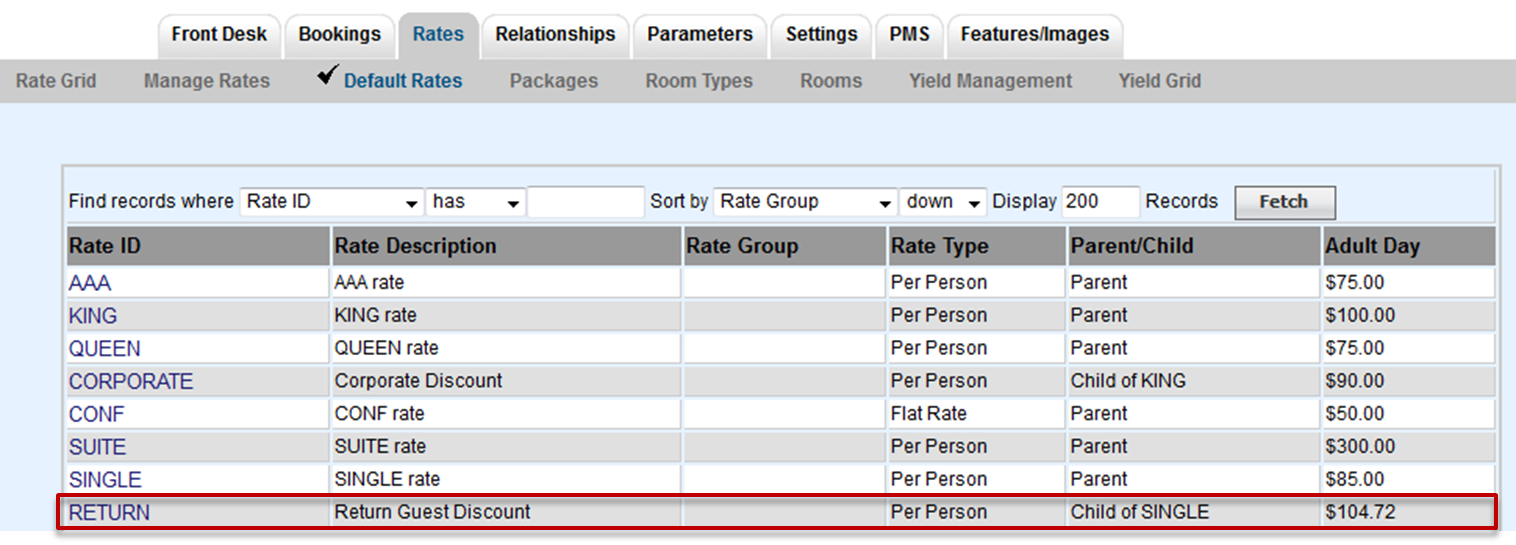
You will now see a display of your Child Rate in the Default Rate List. Click on the Rate ID to Edit the Child Rate. Only the Rate Group, Adjust By and Description fields can be edited.
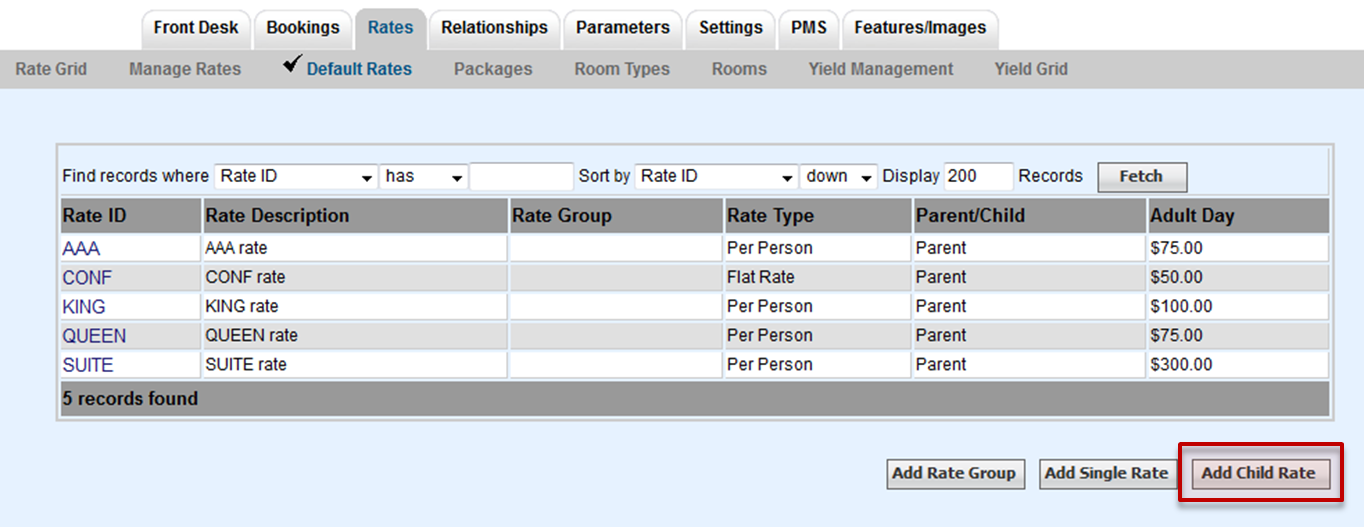
To add a Child Rate, click on Add Child Rate as shown here.
A new screen will open to enter the new Child Rate. Enter the information as shown here.
- Rate I.D.: Add a Rate ID (7 characters, letters only). Typically starts with the reason, like OTA or AAA, followed by the parent rate ID. Example: OTAKING
- Description: Add a Description for the Rate
- Parent Rate I.D.: Select the Parent Rate Plan that will be used for the new child rate plan. Click on the drop-down menu to see a list of the available parent rate plans. Select the parent rate plan to auto-fill the field.
- Adjust By (%): Enter a value to indicate the percentage increase or decrease. Enter the number without the % sign. To add an increase, enter a number only. To enter a discount, enter a minus sign in front of the number (for a 10 % discount, it would look like -10).
Above are the critical fields needed to complete the new child rate plan. Some of the optional fields are:
- Closed to arrival days
- Default min or max stay days
- Sort order
- If an item is included with this rate
- If this rate is used for the booking engine as a strikethrough value
Many of the optional fields can be utilized on the Manage Rates page using the Manage Restrictions flag
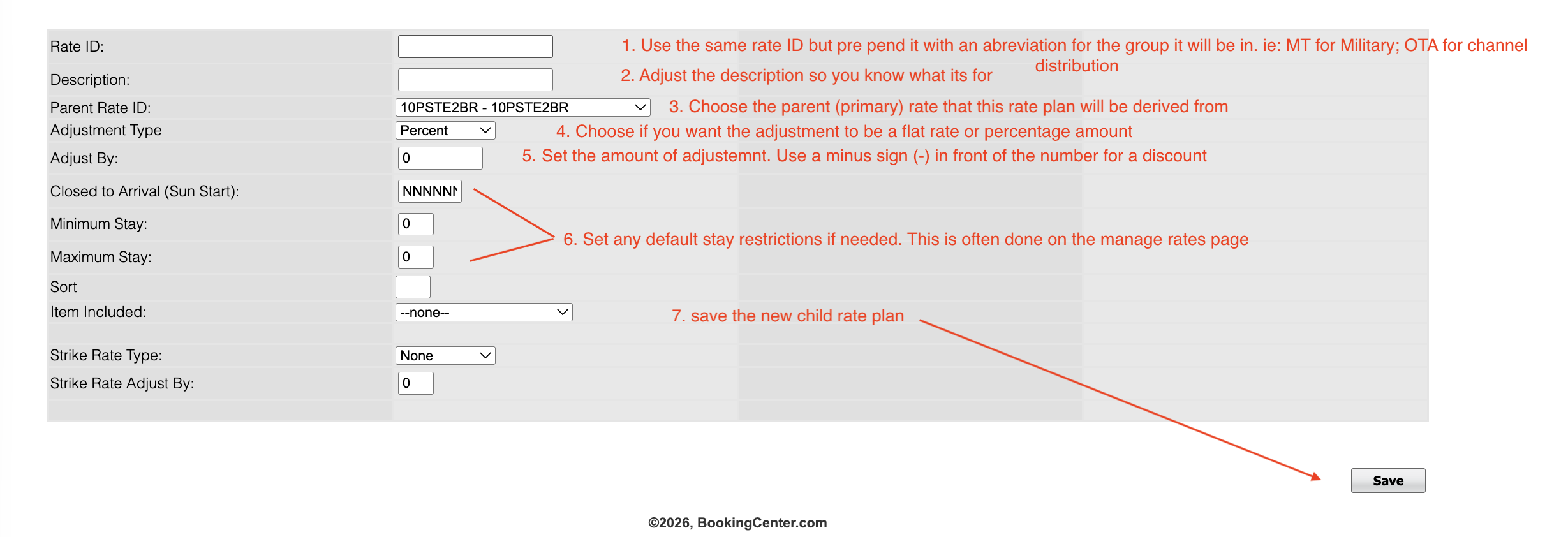
Click Save to complete the Child Rate.
To make changes to Child Rates, see Edit Child Rates
Overview
Content Tools