To learn how use the Maintenance App, follow the steps below.Assign and Send a Maintenance RequestIn MyPMS the Tape Chart and each booking allows a User to add a Maintenance Request or to view one that has been entered (if there is a booking number assigned to the Maintenance request, the tab My Guest will show any Request(s) for that booking). Users can add maintenance Request and track them from the PMS or via the app or web.. 
When 'Add maintenance Request' is clicked, a form appears for your staff: 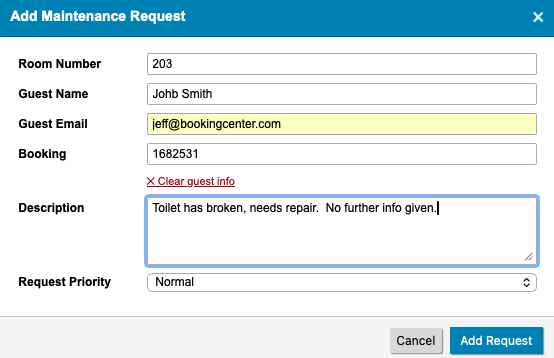
*note: the Priority (2 options: Normal and High) is to allows allow a user to 'sort' requests. It has no bearing on notifications nor on when a request will be escalated. Once the User clicks 'Add Request', the result is a new Request, it has been sent as a 'notification' to whoever was set as the 'default' maintenance user for your property, and it saves to the booking. Clicking the Request ID will open the request.: 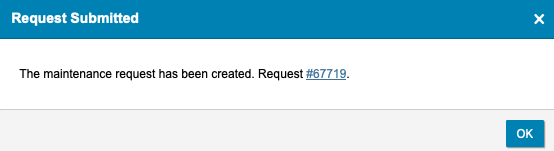
The ...the details will saved to the new maintenance Request created: 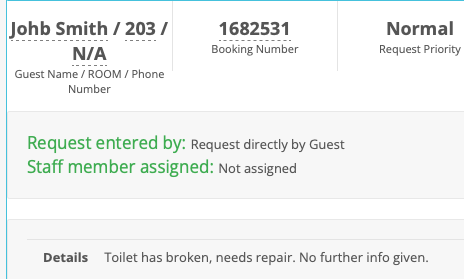
...and the booking that initiated the request will now show the Request and its status. 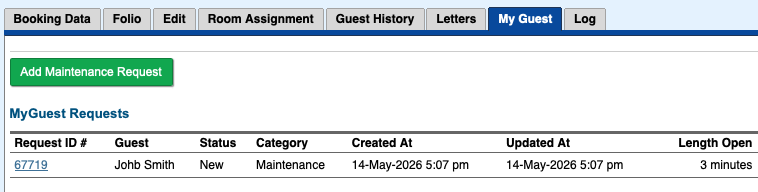
Adding Maintenance Request from the Tape ChartFrom any room on the Tape Chart, a User can assign a Maintenance Request for that room. 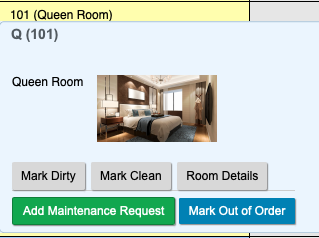
If the Room has an ACTIVE booking in I t, then the Guest name and Booking Number defaults , but it can be removed if the maintenance request isn't appropriate to that Guest and/or Booking. 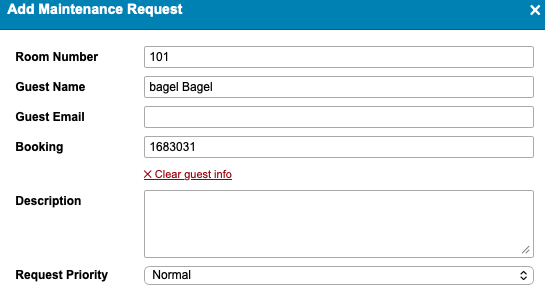
If the Room has no active booking, then the User must fill in some details to assist the Maintenance staff with the request. 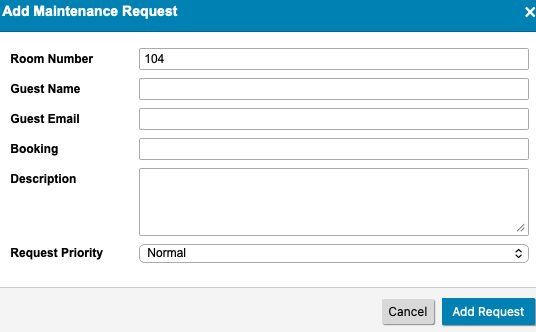
Armed with the BookingCenter mobile app (or they can use a web browser), the User receives notification and the system notates the time the request was sent. |