If a Guest Request is received at the Front Desk or by Phone; or you receive the request from a staff member or Guest directly, it can be added manually to the system.
MyGuest
For a Staff Member to add a Guest Request, follow these steps:
Step 1: Add Request
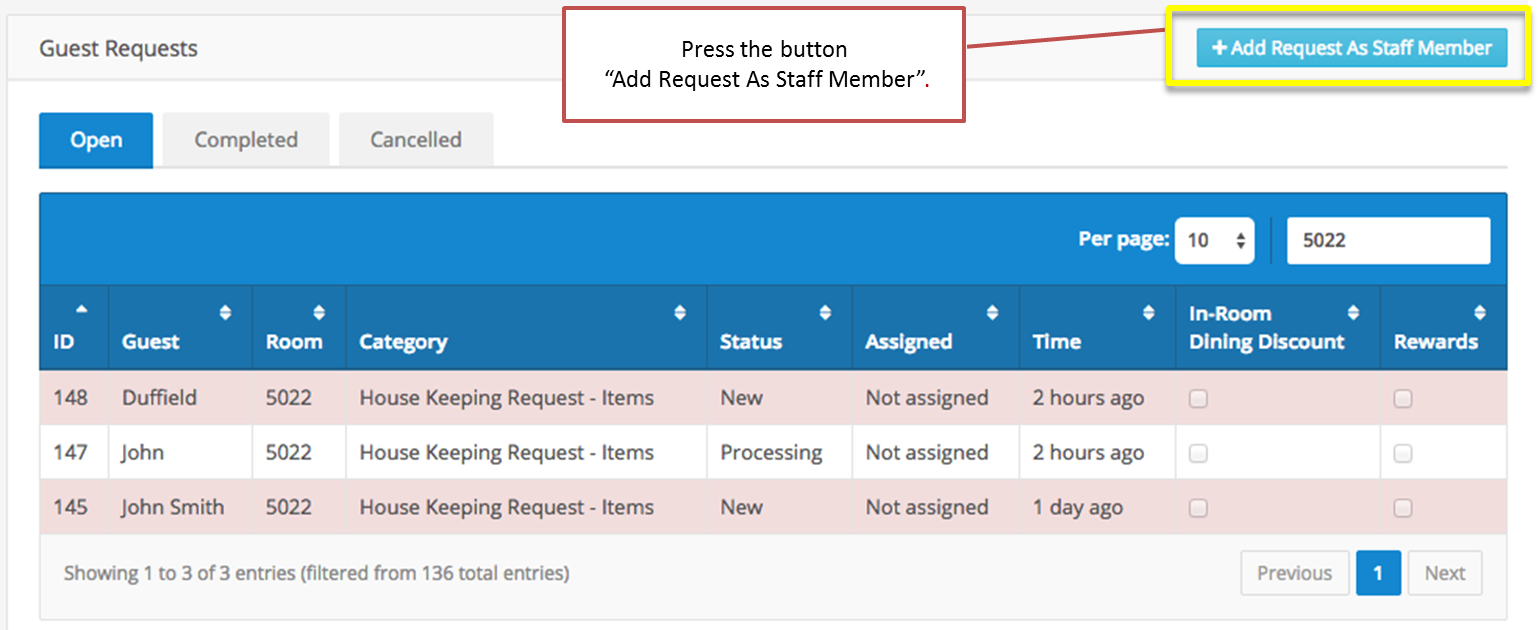
On the Requests screen press the blue button "Add Request As Staff Member" as the top righthand corner of the screen.
 Click image to enlarge
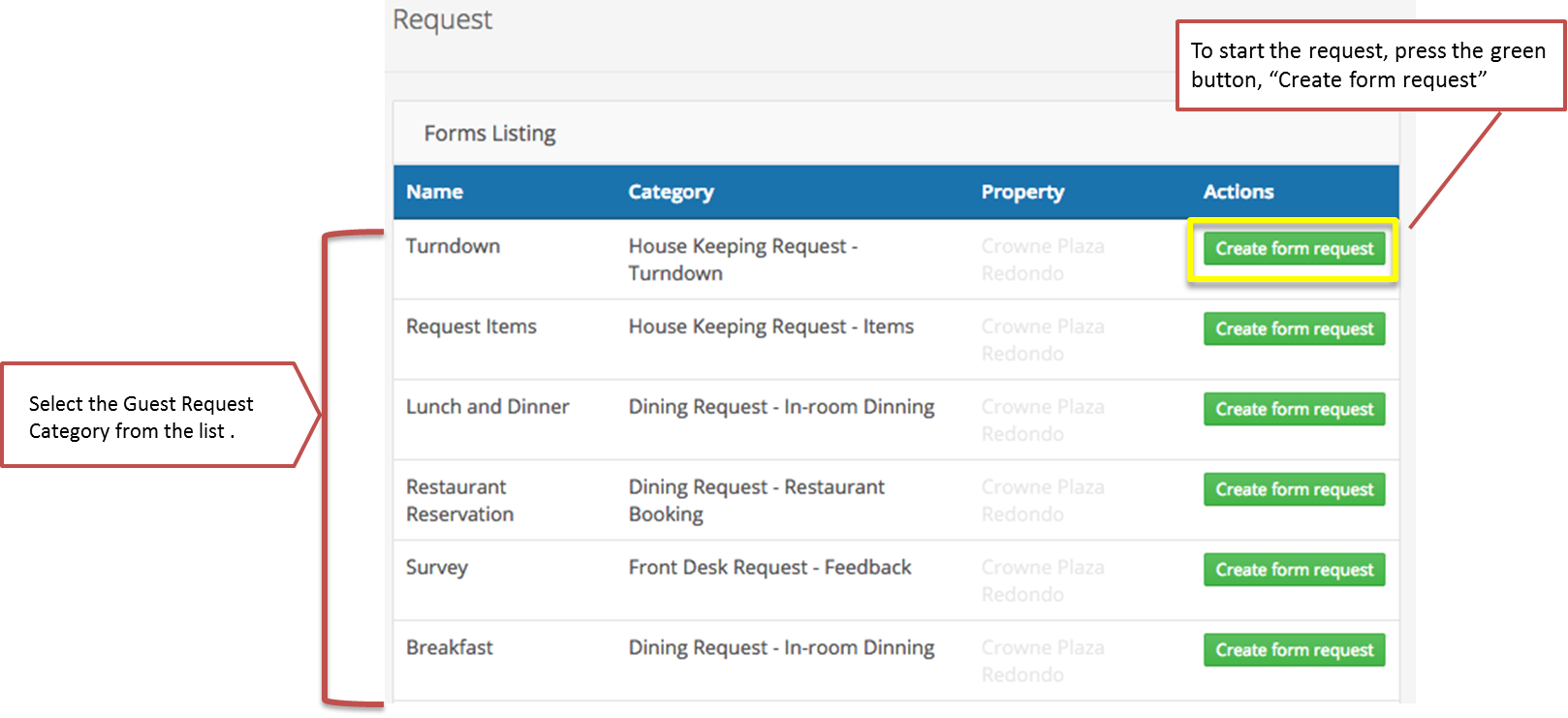
Step 2: Select the Request Category and Create New Request
Click image to enlarge
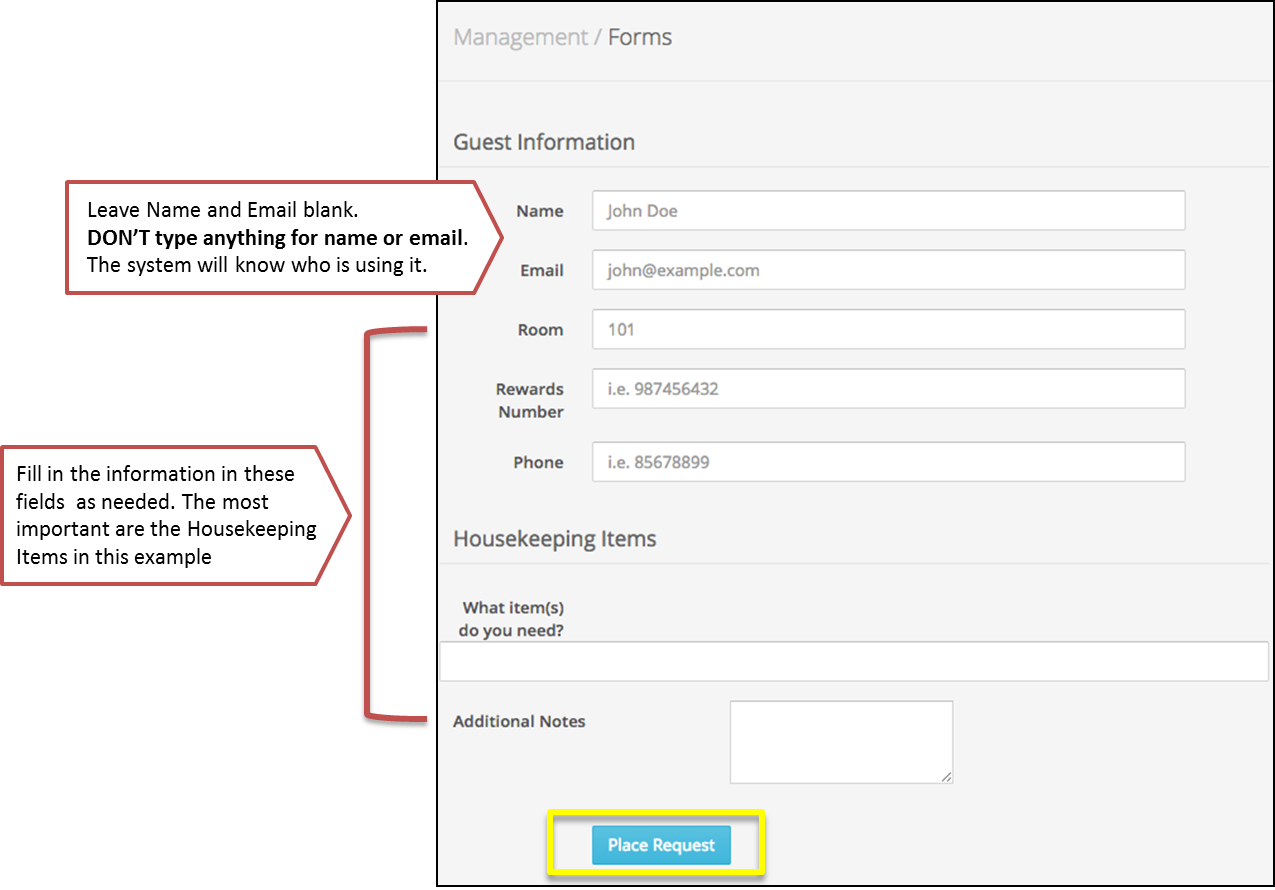
Step 3: Complete the form
Leave Name and Email blank. DON’T type anything for name or email. The system will know who is using it.
Click image to enlarge
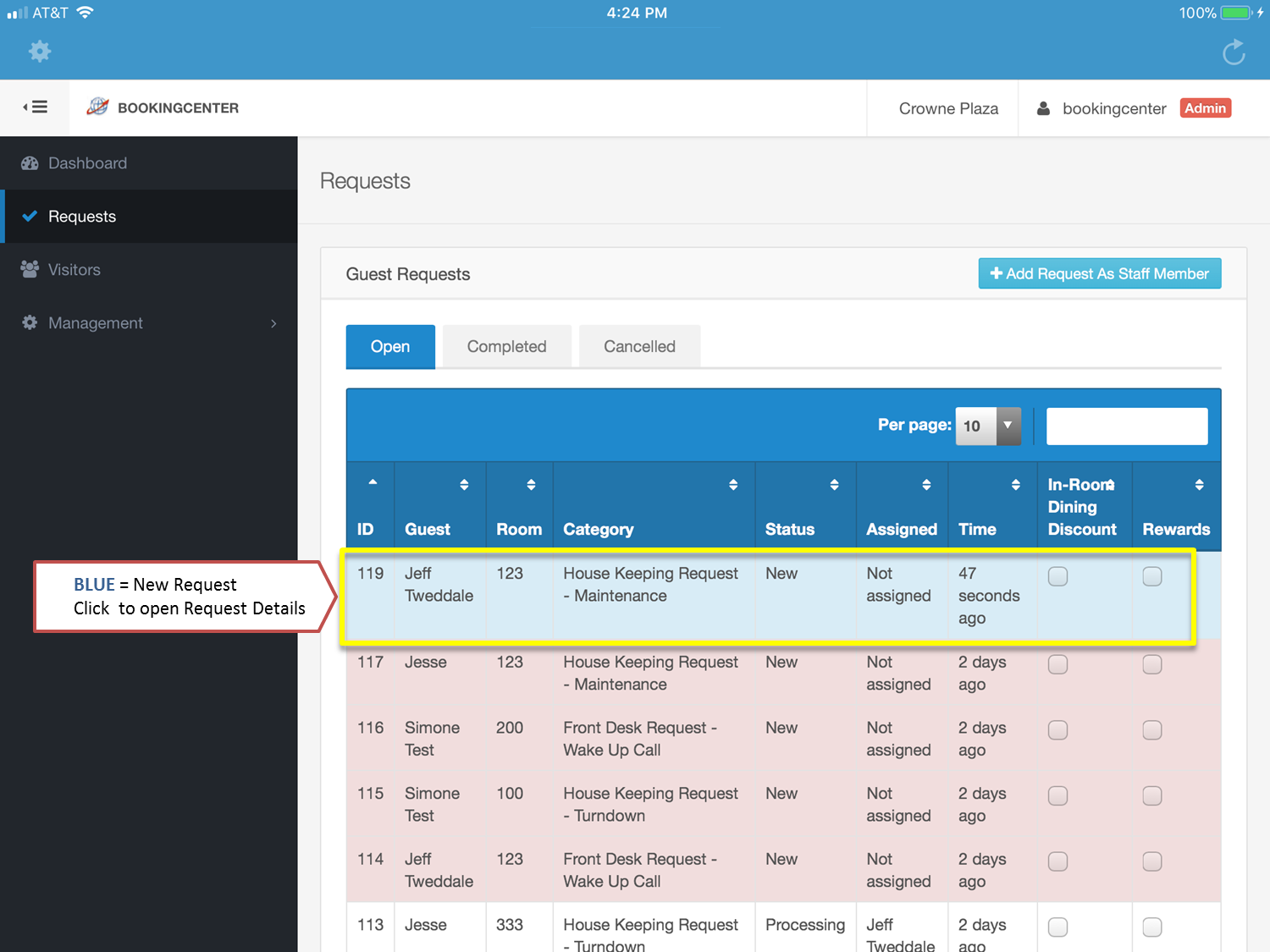
Your request will be sent to the Requests screen ready for processing. It will be color BLUE for new and will be ready for processing.
Click image to enlarge
Upload Images, PDFs, and Videos (Manage Images and Files with Requests)
Any form that your staff will use can enable an 'Image upload' feature to allow images to be uploaded and stored with the Request, benefitting:
- Proof of Guest use possibly resulting in damage fees or chargebacks.
- Enabling Housekeepers to post images for Maintenance - a picture is worth 1,000 words :-).
- Documenting evidence of illegal or proscribed use of guest rooms or common areas.
The system will store up to 5 images per Request ticket, and accepts the following file formats: JPG, GIF, PNG, maximum 10 megs in size. Video and PDF files can also be uploaded, maximum 4 mg in size. To reduce sizes of images, we scale the image for the longest aspect to 2048px, and convert any image uploaded to save at 80% quality.
*note - The Apple iOS file type HEIC is supported if taken from a camera or iPhotos. If a raw .HEIC file types is attempted, it often results in an unknown type and displays an 'X' on the image (meaning will not save) - simply save that image into iPhoto and upload from iPhoto, else expert it as a JPG or PNG and upload as one of those types.
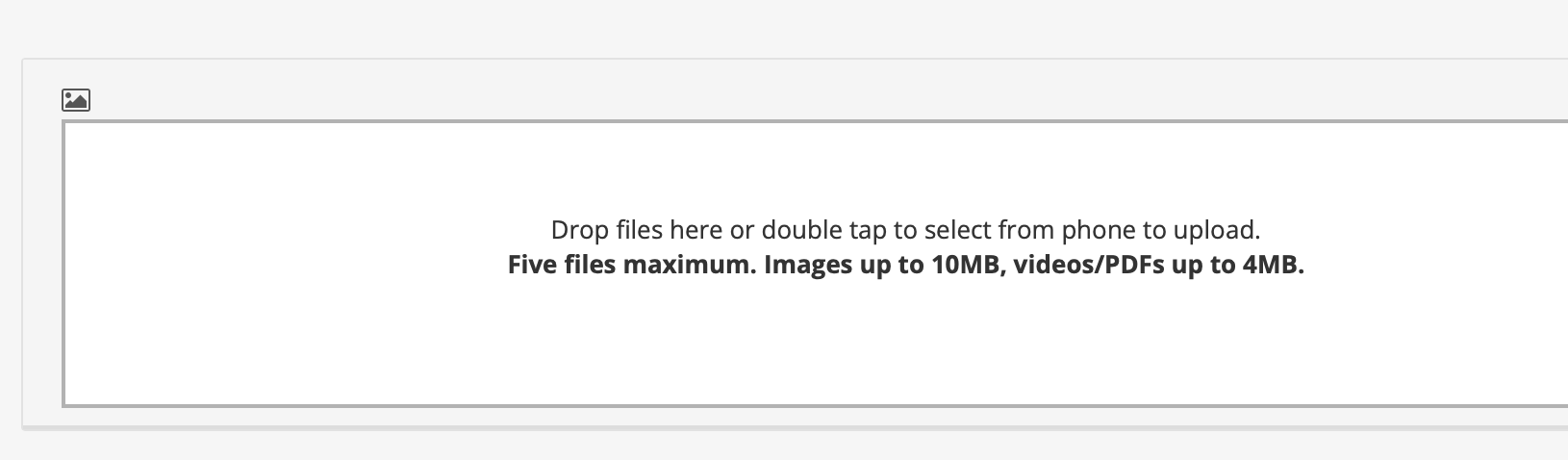
Click image to enlarge
Click the area and your device will try and 'find' the image to upload. From a desktop Mac/PC it will use the standard Finder/Windows Explorer and from an iOS or Android device, you will be able to search from your camera roll or image storage. Note that an image can be uploaded during the Request creation, or afterwards - adding and removing images is easy. But it is not recoverable, so click the delete icon  only when you are actually ready to delete an image.
Overview
Content Tools