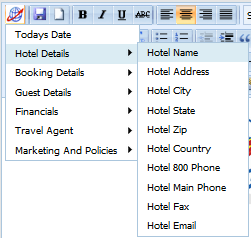
To create or edit any letter: Go to Setup | Parameters | Letters. See Add Letters and, Customize and Edit Letters. To set up Automated Emails, see Auto Letters Setup. Merge Fields available for Individual Letters. See below for details on each field.
- Today's Date - Inserts the date of the current day.
- Hotel Details - Inserts Hotel details: Entered in SETUP|SETTINGS|SITE DETAILS. See Site Details
- Booking Details - Inserts details entered in the Booking Information for each guest. See Booking Details
- Guest Details - Inserts the data entered in Guest Information Section of the Booking Data. See Booking Details
- Financials - Inserts financial information from the Payment Information and Folio of Booking Data See Booking Details-Folio
- Financials (Projections) - Inserts financial information for future bookings. Use for Confirmation Letters. See Booking Details-Folio
- Financials (Taxes) - Inserts Tax information from the Payment Information and Folio of Booking Data See Booking Details-Folio
- Travel Agent - Inserts information from Agents. SETUP|RELATIONSHIPS|MY AGENTS See Agents
- Marketing and Policies - Inserts information from Marketing and Policies. SETUP|SETTINGS|MARKETING AND POLICIES See Marketing and Policies
- Form Options are useful for requesting Guests to enter data that stores with the letter. Examples:
Text Area - this allows a Guest to enter any text into a boxed area, such as a narrative for why they want to visit your property. What they enter gets saved with the letter. If you use the ’text box’ and don’t want it its width aligned to the edge of the page, then you must place it inside a Table. For example:
 Image Removed  Image Added
would look like :
Image Removedthis to the Guest
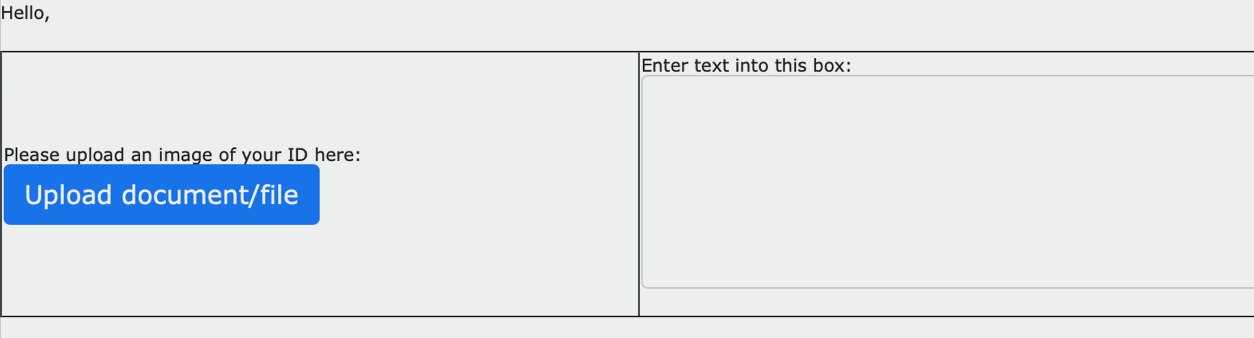 Image Added
Image Placeholder: This allows a User to choose from their Photos/Images library and enter an image to be saved with the Letter. Examples off using this might include a COVID-10 Vaccine Card, a picture of a passport or driver's license, etc.
Upload Document: This allows a User to choose from their files library and uploaded documents such as JPG, PNG, PDF, etc. Nice for saving signed contracts or legal documents such as Driver's Licenses or Passports.
QR code: this places a QR code that a Guest can 'capture' via their camera that takes the Guest to the MyBookings area to perform actions for the specific Booking such as signing registration letters, updating personal contact details, adding a Payment method, or preparing to Self Check-in. - Digital Signing - Inserts the link to the Digital Signature Document. And, the signature and initials box that the guest will sign. See eSign - Digital Document Signing
- Owners - Owner contact details and commission fields to create detailed letters for each Owner.
NOTE: - A merge field that involves payment in the Folio, will appear blank if there aren't any transactions in the Folio yet.
- To display a complete folio list of Charges, Rents, and Payments , use 'Display All Folio Items' .
- If you have post dated charges such as, a spa or transportation charge, but will let night Night Audit post the RENT charges (most common), then use the 'Display All Folio Items' for the charges posted in the folio. To display the Room Rent Charges use the 'Daily Rate Grid'.
|