Page History
...
When the GL is automated to your QuickBooks, using the QuickBooks app called "BookingCenter to Your GL", you have access to a web service that enables you to setup, map, and test the GL process between MyPMS and your QuickBooks system. The area looks like this:

- Mapping Accounts – This checks that your mappings are correct in QB and BookingCenter.
- QuickBooks Accounts – loads all QuickBooks Accounts directly from Quickbooks.
- QuickBooks Customers – loads all QuickBooks Customers directly from Quickbooks (used for AR).
- A/R and A/D - shows the QuickBooks account that is connected to the mapping in BookingCenter.
- Tech/Setup - shows the ClientID / Token settings etc.
- Import - Allows you to see the JSON and Import to QB if needed. Note when you import, it will import to QB
...
- all records for that SystemDate.
When we
...
train a customer with the GL process to QuickBooks, there may initially be problems with GL mappings (errors get both emailed and visible on the screen, if so) and thus re-importing to the GL
...
may need to occur.
...
If left un-attended, this can be a BIG problem
...
for the accountant
...
to go back into
...
QuickBooks Journal and remove/delete the errant postings, or re-import via
...
the QB.BookingCenter.com area
...
(which can create duplicate GL entries). To make this
...
easy for customers, BookingCenter
...
recommends that all new customers follow the approach:
- After double-checking your mappings and GL account codes, use the QB.BookingCenter.com area to initiate the first day or two of entries and then audit to make sure your assumptions were correct in your QuickBooks accounts.
After a few days of using the QB.BookingCenter.com area's Import button for each System Date, then turn on the 'automatic at Night Audit' and use a Manual Night Audit approach for a couple days to get the Night Audit process working properly, including the ""BookingCenter to Your GL" automation.
- If you then choose to use Automatic Night Audit, make that switch and pay attention to the emails and arrays sent to you, run reports and confirm the expected results are delivered..
Importing via Night Audit: Manual and Automatic Night Audit.
BookingCenter has checks to assure a User does not import multiple times for a System Date, either manually via the QB.BookingCenter.com area; via manual Night Audit; or via Automatic Night Audit. Ideally the import should be done only once, as multiple Imports would require you to accept multiple entries or multiple entries delete Journal entries in QuickBooks - a painful exercise.
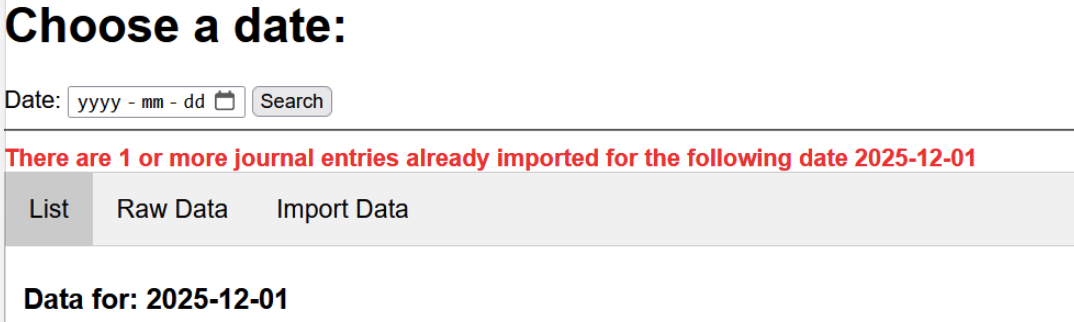
The import tool also enables a re-import for a specific date (note, it's always the 'System Date' that loads the JSON for import - and thus will equal that System Date's Transaction Summary report. But the Log is always the 'clock date' the QuickBooks actually imported in Pacific time, which is often differer than the hotel's SysteDate). The Import tool allows a user to select which Items they want imported, avoiding duplicating GL entries already made for that System Date. BookingCenter logs each System Date entry to make sure Night Audit (manual or automatic) or a manual 'Import' action will not re-submit journal entries. If a System Date was already imported, there is an error message presented on the screen in the QB.BookingCenter.com area such as the following:
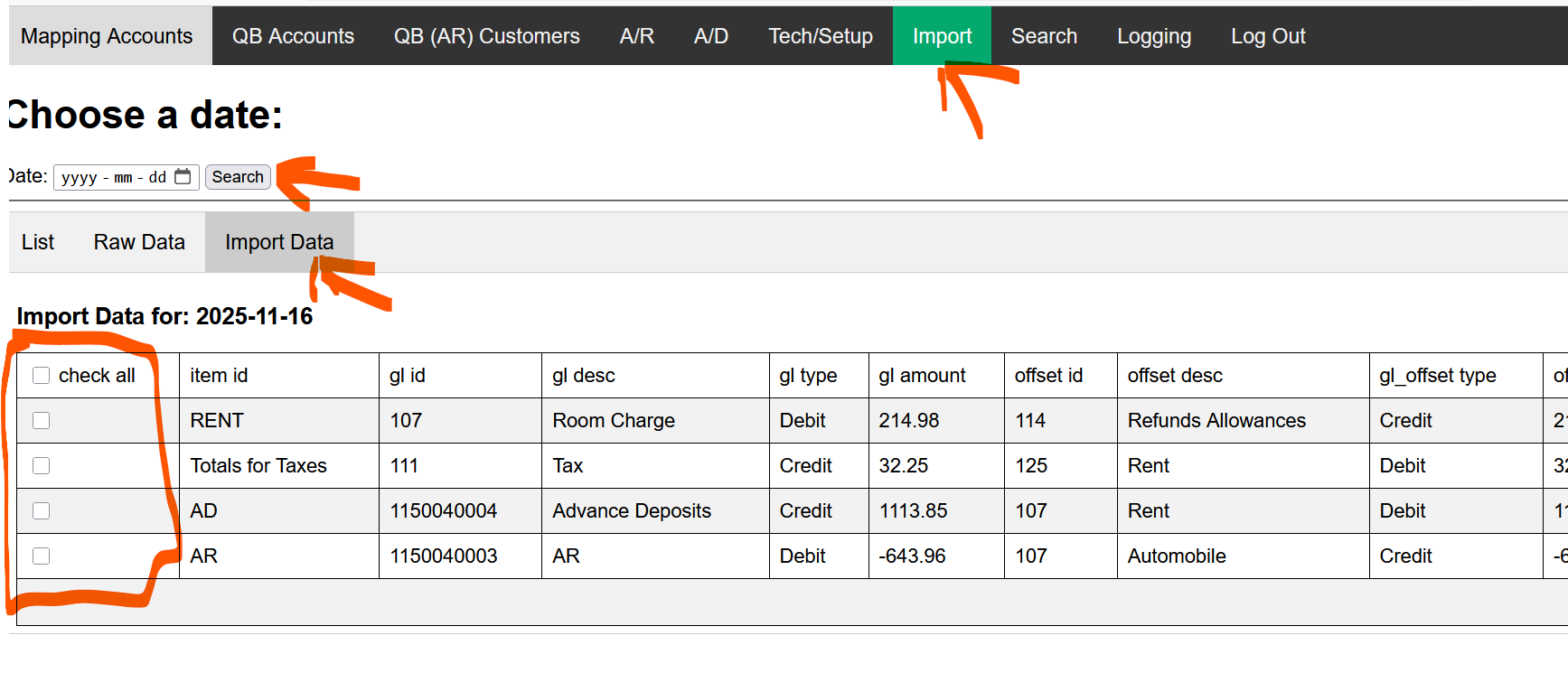
When using a Date for the Import Tool, simply de-select those mapping areas you DO NOT want to re-import to QB form that date.
If the log shows that a System Date entry has already been done (whether with errors or not) then the User will need to approve the action, as it could re-import records already sent to QuickBooks.
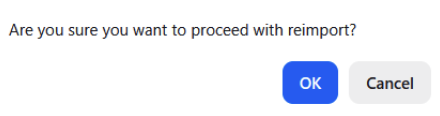
As described above, though, it may that there were errors with only specific categories that have been fixed, and the accountant is now trying to re-import, and that is an excellent reason to answer YES and allow a re-import for a System Date that had been run prior.
When using a Date for the Import Tool, simply de-select those mapping areas you DO NOT want to re-import to QB form that date.
- Search – Allows you to search for a Journal entry that imported. This only searches 1 day at a time.
- Logging – QuickBooks logs each entry and error. Search any date required, but note that the date for the QuickBooks is actual time and date (listed in Pacific Time, ie, California) that the Journal entry was entered. Depending on how you use Night Audit, that may/not be the actual date of your System Date.
...
Overview
Content Tools